

Are you looking to enhance your documents in Google Docs with arrows? Whether you’re designing a flowchart, creating a presentation, or simply wanting to emphasize a point, adding arrows can make your content more engaging and visually appealing.
You might think it’s a challenging task, but it’s actually quite simple once you know how. This guide will walk you through the process step by step, ensuring you can seamlessly incorporate arrows into your documents. By the end of this article, you’ll be equipped with the skills to make your Google Docs stand out and communicate your ideas more effectively.
Let’s dive in and transform your documents with just a few clicks!
Credit: www.youtube.com
Accessing Google Docs
Open Google Docson your computer. Go to drive.google.com. Click on the Google Docs icon. You will see it on the left side. This icon looks like a blue page. Click it. Now, you are ready to start.
Choose a document. You can open a new one or an old one. Click on the document. It will open in the editor. You will see a menu at the top. This menu has many tools for writing.
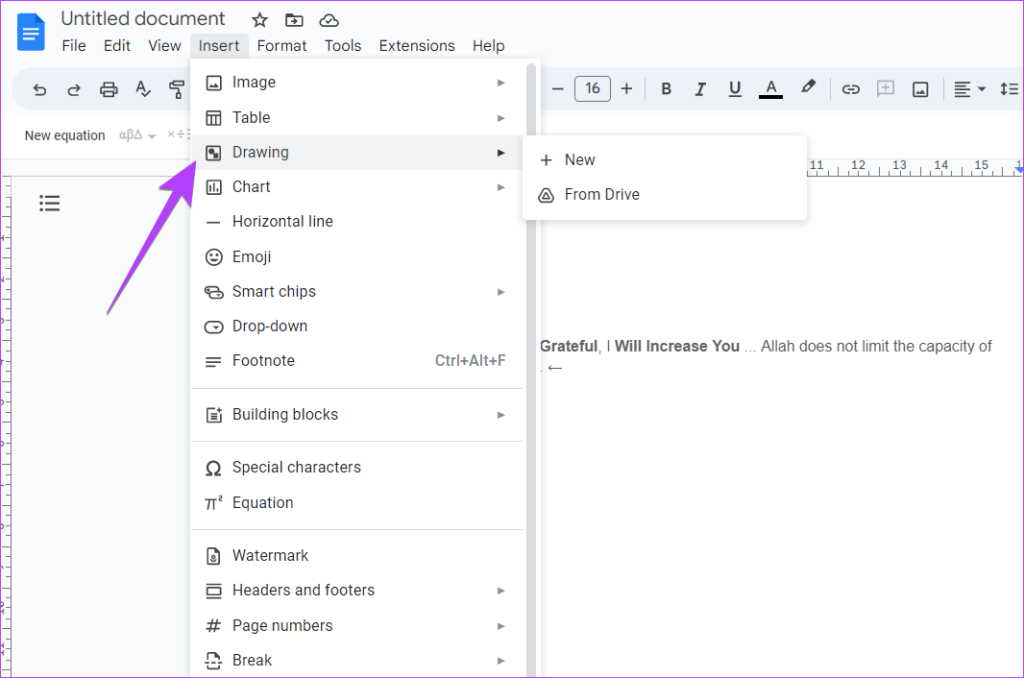
Find the Inserttab. It is at the top. Click on it. A drop-down menu will appear. This menu has options like image, chart, and drawing. Use the drawing tool to add arrows. You can draw them or use shapes.
Credit: www.guidingtech.com
Using The Drawing Tool
Start by clicking on the “Insert”menu at the top. Choose “Drawing”from the list. Click on “+ New”to open the panel. A blank canvas will appear for your drawing.
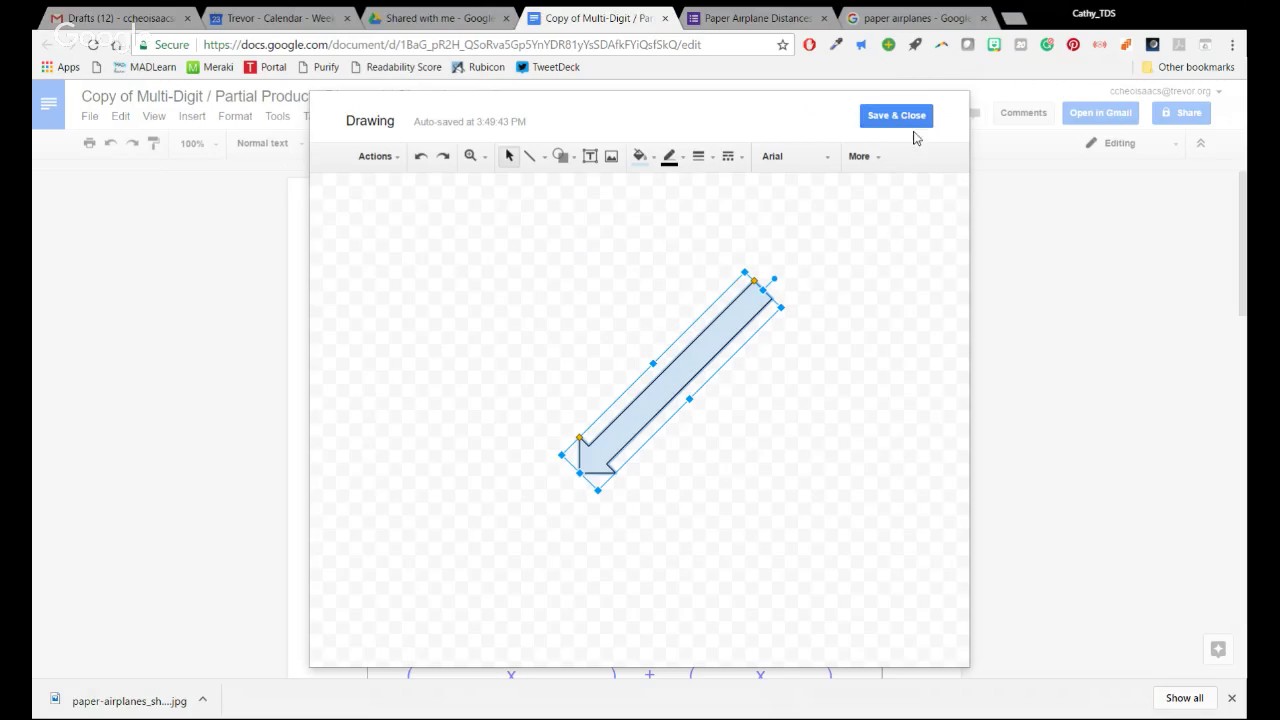
In the drawing panel, find the shape icon. Click on it. Choose “Arrows”from the dropdown. Pick any arrow shape you like. It will appear on your canvas.
After selecting the arrow, adjust its size. Drag the corners to resize. Click on “Save and Close”to insert it into your document. The arrow is now added to your Google Doc.
Customizing Arrows
Inserting arrows in Google Docs enhances visual clarity. Open the “Insert” tab, select “Drawing,” and choose “New. ” Use the arrow tool to draw custom arrows, then save and insert them into your document. Adjust sizes and colors for better customization.
Adjusting Arrow Size
Resize arrows by clicking on them. Drag the small blue boxes. Make the arrow bigger or smaller. It is easy to do. Try it out. Practice makes perfect.
Changing Arrow Color
Click on the arrow. Look for the color palette icon. Choose your favorite color. Click on it. The arrow changes color. Brighten up your document. Make it colorful and fun.
Modifying Arrow Style
Different styles make arrows unique. Select the arrow first. Find the “Line” menu. Choose from dotted, dashed, or solid styles. Experiment with styles. Create a look you like. Be creative and explore.
Inserting Arrows With Special Characters
First, open Google Docs. Click Insertin the top menu. Find and click Special Characters. The special characters box will appear.
Look for the search box. Type arrow. Arrow symbols will show up. You can see many types of arrows here. Choose the arrow you like.
Click on the arrow symbol. The arrow gets added to your document. You can resize it. Drag to move it anywhere. It’s easy and quick!
Using Keyboard Shortcuts
Adding arrows is simple with keyboard shortcuts. Press Altand the number keysto insert arrows. For a right arrow, press Alt + 26. For a left arrow, press Alt + 27. These shortcuts make adding arrows quick.
Keyboard shortcuts save time. Use them often. Make a list of your favorite shortcuts. Keep this list near your desk. Practice using shortcuts daily. Soon they will feel natural. Avoid overusing arrows. Too many can confuse readers.
Practical Applications
Arrows make documents look neat and clear. They guide readers smoothly. Arrows can highlight key points. They keep your audience engaged. Visuals with arrows are easy to understand. They can direct attention to important areas.
Arrows are very useful in diagrams and charts. They show direction and flow. This helps in explaining processes. Arrows can connect different parts. They make complex ideas simple. Diagrams with arrows are easy to follow. They help in visualizing data clearly.
Troubleshooting Common Issues
Sometimes, arrows may not show up as expected. This can be frustrating. Check if the font style is causing this. Some fonts do not support arrows. Try using a different font. Arial or Times New Roman usually work well.
You might also face issues with arrow size. Arrows can appear too small. Adjusting the font size can help. Make sure the size is large enough to see clearly.
Formatting can mess up arrows. They might shift or disappear. Ensure that you are using the correct alignment settings. Justify alignment can sometimes change the look.
If arrows are inside tables or lists, check those settings too. Sometimes, a simple reset can solve the issue. Clear formatting and set it again.

Credit: www.youtube.com
Frequently Asked Questions
How Do I Insert Arrows In Google Docs?
To insert arrows in Google Docs, use the “Insert” menu. Choose “Drawing” and then “New. ” In the drawing tool, select the “Line” tool and choose “Arrow. ” Draw your arrow and click “Save and Close” to insert it into your document.
Can I Change Arrow Colors In Google Docs?
Yes, you can change arrow colors. In the drawing tool, select your arrow. Click the “Line color” icon and choose your desired color. You can also adjust the arrow’s thickness using the “Line weight” option.
Are There Arrow Keyboard Shortcuts In Google Docs?
Google Docs doesn’t have direct keyboard shortcuts for arrows. However, you can use the “Drawing” tool to quickly add arrows. Alternatively, use third-party browser extensions to enable shortcuts for inserting arrows.
How To Create Curved Arrows In Google Docs?
To create curved arrows, open the “Drawing” tool. Select the “Curve” tool and draw your desired shape. Then, change the line end to an arrow. Adjust the curve by dragging the points as needed.
Conclusion
Adding arrows in Google Docs is simple and enhances document clarity. Using the drawing tool or special characters, you can easily insert arrows. These visual cues help guide readers through your content. They make information more digestible and highlight important points.
Experiment with different arrow styles to suit your needs. Practice these steps to become more comfortable with the process. Soon, inserting arrows will feel natural and effortless. Happy editing!